
 StageLogger
Frequently Asked Questions
How do I get StageLogger? What devices does it work on? When will you release an Android Version? How do I use StageLogger? Will you be updating the app? What's the best way to mount my phone/ipod? How do I get my videos onto my PC? Why do you only support one orientation? Why do my videos play upside down on my Windows PC? How long will my battery last? What happens if I receive a call in the middle of a stage? How much of my data allowance will it use? How much space will it use on my device? Can I use it in recce? What difference is there between using it on the different devices iPod Touch, 3GS, vs 4, vs 4S Will it work on the iPad? Can I upload a video with all of the map and speed information integrated? My Youtube uploads keep failing. What can be causing it? What's the video quality like? How can I review and analyse the motion and location logs? How do you get GPS with an iPod touch? What's your recommended setup? How awesome is StageLogger? Can I record audio from my intercom? Can I record from the front and back camera at the same time? I'm a geek that loves rallying too. Is there anyway I can get involved with developing StageLogger and associated applications? What is your Proceeds to Motorsport Guarantee all about?How do I get StageLogger?
It's available from the Apple App Store. Go here: Go to the App Store
What devices does it work on?
Compatible devices are iPhone 3GS, 4 and 4S, iPad 2 and iPod Touch 4th Generation
Devices must be on at least iOS 4.3
When will you release an Android Version?
Not sure. There are a lot of enhancements we want to make to the iOS version first. If you can't wait, just go out and grab an iPod touch....or steal one from your kids
How do I use StageLogger
Recording Logs
- There are two modes Auto and Manual.
- Auto is the default mode. After tapping the start button the device constantly checks for the car starting from standstill and then will keep the recording only if the acceleration of the car is above a certain threshold for the first 20 seconds. Otherwise it will delete the recording and wait for the next start. The thresholds can be changed on the settings tab. If the recording will be kept, the recording will stop when the device detects that the car has been stopped for at least 5 seconds. With the default threshold settings it would be almost impossible to trigger a full recording when driving on the road without breaking the law but it will detect competition conditions every time (although different cars may need the detection thresholds changed in the settings tab based on their accelerative capabilities)
- You can turn Auto Mode off in the settings tab (it's the first setting). After that you'll be in Manual Mode. To start a recording, just press the start button on the first tab and you're away. Press stop to end the recording.
- When a recording stops (either in auto or manual mode), the video recording is copied to the device's Photo Gallery. This can take some time (a minute or two for long recordings). Whilst the copying is happening, a stage summary is shown for the stage just completed. You cannot start another recording until the recording has been copied and the stage summary has disappeared.
- The data recorded is:
- Video: in VGA resolution (640 x 480) by default. The resolution can be changed in the Settings Tab.
- Location: If GPS is available: Location, Speed, Heading, Altitude.
- Motion: Acceleration, attitude, rate of rotation
Viewing Logs
- The list of logs can be viewed by going to the middle "Stage Logs" tab. Tap on a row in the list to see the recording for that stage.
- For each day of recordings, the first row is a summary of all of the day's recordings. You can choose to upload all of the day's logs to YouTube in one go if you wish and you can set the details for the Event and crew. Note: Your YouTube login needs to be set in the Settings Tab.
- For each stage you'll see the video, map, speed and a speed graph which are all correlated as you play back the recording.
- Tap the Options button in the top right to see a few more details about the stage and get the option to upload just this video recording to YouTube.
- The Stage Name and Car No. fields may need to be set. The other text fields (like Driver and Navigator) are populated from the settings in the Settings Tab but can be overridden here for this stage only if you wish.
Other Features
- The current speed is shown in the bottom centre of the main tab whenever there is GPS reception.
- When a recording is underway the distance into the stage is shown in the bottom left and the stage time is shown above that.
- The current recording status is shown in the top left.
- The Stage Summary from the last stage can be shown by tapping the recording status area as long as a recording is not underway. The Stage Summary can be dismissed by tapping anywhere on the screen.
- When uploading to YouTube, all of the YouTube fields are filled out with information from the app, you don't need to do anything else...just share the YouTube links with your friends.
Will you be updating the app?
Absolutely. We'll be adding features over time and everyone who has bought the app will get the updates via the app store
What's the best way to mount my phone/ipod?
There are a number of options.
Firstly, a very simple option is a windscreen suction mount like the one below. They range from about $10 to $20. 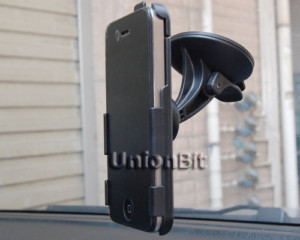
Most of the video that has been uploaded to YouTube has been captured using devices mounted in these mounts. See here: Fazz's Youtube Channel
They provide a surprisingly good option. We've got a whole bunch of these in stock for iPod Touch, iPhone 3GS, 4 and 4S. Send us an email at support@racenik.com if you want us to send you one.
Higher-end mounts with more adjustability are available from places like Camzilla and Ram Mounts
How do I get my videos onto my PC?
The videos are stored in the device's photo gallery like normal photos and videos that you take with the device. You can then transfer them to your computer the same way that you would with normal photos or videos?
Why do you only support one orientation?
To attempt to ensure that you mount the device the best way so that the camera has a clear view past the windscreen mount. If this is a major pain for you, let us know and we'll change it.
Why do my videos play upside down on my Windows PC?
Unfortunately many of the Windows media players do not read the orientation information in the video file. So they play the video upside down due to the orientation of the device when the recording is taken.
Don't worry, there is a solution. If you use Apple's Quicktime video player, it will play it the right way up (just do a search for "quicktime player"). Also, when you upload to Youtube, the video will show the right way up. There are many other simple utilities and other editing programs that will allow you to flip the video as well.
How long will my battery last?
The app is very power intensive because it uses almost all of the hardware on the phone (recording video is especially power-intensive). In the rally environment, you'll probably get 2-3 hours of operation on a charge. This all means that if you want to record a whole day, you will either need to recharge between stages or hook up power permanently (which is easy to do with a cigarette lighter charger).
What happens if I receive a call in the middle of a stage?
The app will stop recording. There are 3 ways to avoid this:
- Divert your calls (go to Settings->Phone->Divert Calls)
- Take the SIM out - this is actually the best technical option (though it's a bit inconvenient). This is because it will stop the phone components from using power and will result in longer battery life too
- Use an iPod Touch (or your iPhone in Airplane mode) and a GPS dongle. This is our favourite setup. It gives the best mapping output, is the lightest option (with an iPod) and doesn't have the problem with calls interrupting recordings
Unfortunately putting the phone in Airplane Mode disables the internal GPS. So whilst the automatic recording and video will work, you will get no map trace in Airplane Mode.
How much of my data allowance will it use?
Not much when you're recording. There will be some communication for Location Services if you are using an iPhone, but that will be it.
If you choose to upload over 3G you will use a lot of data. See the next section on how much space is used to get an idea. If you do want to upload over 3G we recommend uploading the videos directly from the iPhone's photos app. When you do this, the iPhone compresses the video further, which results in a much lower amount of data usage, but you do get lower quality videos as a result.
How much space will it use on my device?
It depends on the settings for resolution.
1GB of space will allow the following length recordings for each resolution:
| Resolution | Length (minutes) |
|---|---|
| Low (192x144) | 120 |
| Medium (480x360) | 20 |
| VGA (640x480) | 13 |
| 720p (1280x720) | 5 |
| 1080p (1920x1080) | 3 |
We recommend using VGA resolution as the best compromise between space usage and video quality. It is the default setting when you install the app
Can I use it in recce?
Absolutely! It's great for recce. Just use Manual Mode to start and stop your recordings at the start and stop point of the stages and you'll have a great record of the stages for later review of your pace notes. You can play back the video on the device very conveniently, upload the video to your PC or even connect your device directly to any TV (with a connection kit) to allow you to review the stages anywhere, anytime.
What difference is there between using it on the different devices iPod Touch, 3GS, vs 4, vs 4S
Firstly, the iPod Touch does not have an internal GPS. So if you want the map trace (and of course you do…it's cool) you'll need an external GPS (which we think is a great option)
Generally the later the device, the better the video quality and the accuracy/sensitivity of the GPS. However, they will all work quite well. If you have a 3GS and are wondering if you need to upgrade, then don't worry it'll work fine….unless you really want a shiny new 4S, in which case tell your significant other that "Fazz said I needed it" :)
Will it work on the iPad?
Yes, it will work on the iPad 2. Note that only the "3G" models have an internal GPS, so you'll need an external GPS if you want to use a "wifi" model. Note that the app runs in "iPhone mode" so it will run at the size of the iPhone…but you can zoom in on it if you want.
Can I upload a video with all of the map and speed information integrated?
Not yet. This is something we REALLY want to add. You can only upload the video at the moment……stay tuned though: Subscribe to our newsletter
My Youtube uploads keep failing. What can be causing it?
There could be a couple of reasons:
- If they fail almost immediately, then it could be your Youtube username and password. Make sure you are using the "Youtube username" and not your general google login. For instance my Youtube username is: GlennFarrant, whilst my google login is my gmail address.
- If they fail part way through, your device might be getting an interruption to its network connection. Try uploading a single video at a time.
For a whole day's worth of recordings the upload to YouTube could take many hours. Plug the device into a power source and let it upload.
What's the video quality like?
Surprisingly good. Whilst uploading to Youtube degrades the quality of the video quite a bit, check out the videos captured on our Youtube Channel
The devices do an amazing job of ensuring the exposure is correct for almost any lighting conditions. We find that using VGA resolution is the best tradeoff between video quality and space consumed….and it's the default setting in the app.
How can I review and analyse the motion and location logs?
The files can be accessed through "iTunes File Sharing"
The location and motion files are stored as CSV files. The summary file is a simple XML file that is quite readable in a text editor.
To get them off your device:
- connect your device to your computer and start iTunes
- Select your device in iTunes
- Select the "Apps" tab
- Scroll to the bottom section (File Sharing) and click on the StageLogger icon
- The logs are named by the date and time of the recording e.g. 2012-02-01 143702 Location.csv for 1st February 14:37:02
- Drag and drop the files to a location on your computer
- Open them in a program like Microsoft Excel to review and plot the data
The columns don't have headings (yet), so to help with your analysis, here are the column lists
Location: Message Type, Version, TimeOfFix, TimeSinceStart, DateTimeOfFix, Latitude, Longitude, Horizontal Accuracy, Speed, Course
Motion (for non-3GS devices): Message Type, Version, TimeOfFix, TimeSinceStart, GravityX, GravityY, GravityZ, AccelX, AccelY, AccelZ, Pitch, Roll, Yaw, RotationRateX, RotationRateY, RotationRateZ
Motion (for 3GS only): Message Type, Version, TimeOfFix, TimeSinceStart, AccelX, AccelY, AccelZ
Note the following directions for X, Y and Z:
- X: Lateral (i.e. across the car)
- Y: Vertical
- Z: Longitudinal (i.e. along the car)
How do you get GPS with an iPod touch?
The iPod touch does not have an internal GPS, so you need an external GPS. Our favourite option is a small device from bad-elf.com. It works so well, that we prefer using the basic iPod Touch with the Bad Elf over using the iPhones.
What's your recommended setup?
iPod Touch (4th Generation)
Bad Elf GPS dongle (www.bad-elf.com)
Basic mount ($20 from us)
Wired-in iphone car charger
How awesome is StageLogger?
It's more awesome than an awesome thing from Uncle Bob's Big Awesome Thing Shop! Thanks for asking.
Can I record audio from my intercom?
Yes. In most cases you can. If your intercom has an audio output you can connect it to the microphone input of your device with a cable like this one: KVConnection Cable
Note that most intercoms output "line-level" audio, whereas the iPhone/iPod is expecting a lower level input. You'll usually need to find a cable with a built in signal attenuator to get a decent level of audio.
Can I record from the front and back camera at the same time?
No. Apple doesn't allow this unfortunately. The main reason for this is that it takes too much cpu power and there is only one set of video encoding hardware on the device….so one video stream only for us.
I'm a geek that loves rallying too. Is there anyway I can get involved with developing StageLogger and associated applications?
Hell yeah! We're looking to develop a whole range of mobile and web apps. So the more the merrier. If you're passionate and smart and want to get involved, send us an email at glenn@racenik.com
What is your Proceeds to Motorsport Guarantee all about?
We're motorsport tragics, just like you. We guarantee to spend all of the proceeds from the sale of StageLogger either on developing StageLogger further or on Motorsport. We regularly attend, official, service, manage and compete at a wide range of events. You'll be supporting us in doing what we all love.